
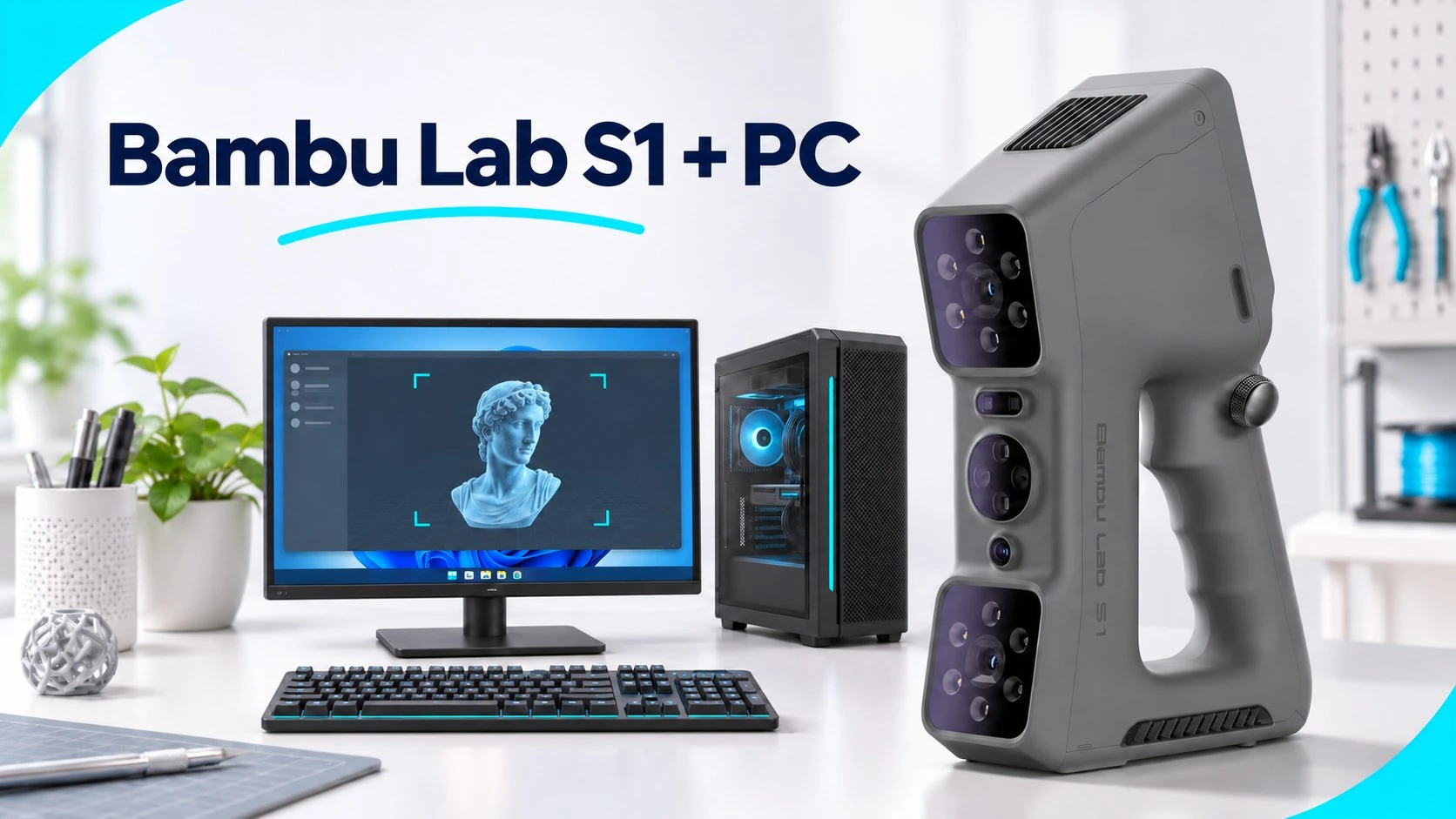
Will the Bambu Lab S1 work with my PC or laptop?
Updated 27 November 2026
The Bambu Lab S1 works with a compatible Windows laptop or desktop PC. Start by checking the graphics card. Bambu Lab lists an Nvidia GeForce RTX 2060 or better with at least 6 GB of dedicated video memory as the minimum. You also need 16 GB of RAM and a suitable processor. Bambu Scan for Mac has been announced.
The S1 has a battery and a display, but your computer processes the images while you scan. Even when you move around an object wirelessly, the PC remains part of the setup. Here is how to check your Windows computer.
What are the Bambu Scan system requirements?
| Component | Minimum according to Bambu Lab | Recommended by Bambu Lab |
|---|---|---|
| Windows | Windows 10 or 11, 64-bit | Windows 10 or 11, 64-bit |
| Processor | Intel Core i7 7th generation or AMD Ryzen 7 series | Intel Core i7 13th generation or AMD Ryzen 9 series |
| Memory | 16 GB RAM | 32 GB RAM |
| Graphics card | Nvidia GeForce RTX 2060 or better | Nvidia GeForce RTX 3060 or better |
| Dedicated video memory | 6 GB VRAM | 8 GB VRAM |
Source: Bambu Lab S1 technical specifications (PDF).
Use the minimum column to assess an existing computer. If you are buying a workstation for the scanner, use the recommended column as a starting point. Both the graphics card model and dedicated video memory matter, especially with laptops.
How to check your Windows laptop or PC
1. Find your processor, RAM and Windows version
Open Start → Settings → System → About. Under Device specifications, find the processor, installed RAM and system type. Write down the full processor name: “Intel Core i7” alone does not tell you the generation. Check under Windows specifications that you have Windows 10 or 11 and check the system type for 64-bit.
For example, 16 GB RAM meets the minimum memory requirement. Whether you can scan also depends on the graphics card. See Microsoft's instructions for finding device specifications.
2. Find the graphics card and dedicated memory
- Press Ctrl + Shift + Esc to open Task Manager. Select More details if needed.
- Open Performance and select GPU. If you see GPU 0 and GPU 1, inspect both. A laptop can have integrated graphics as well as a separate Nvidia card.
- Record the full model name and look for Dedicated GPU memory. If you see 1.2/8.0 GB, 1.2 GB is in use and 8 GB is the capacity to compare with the table.
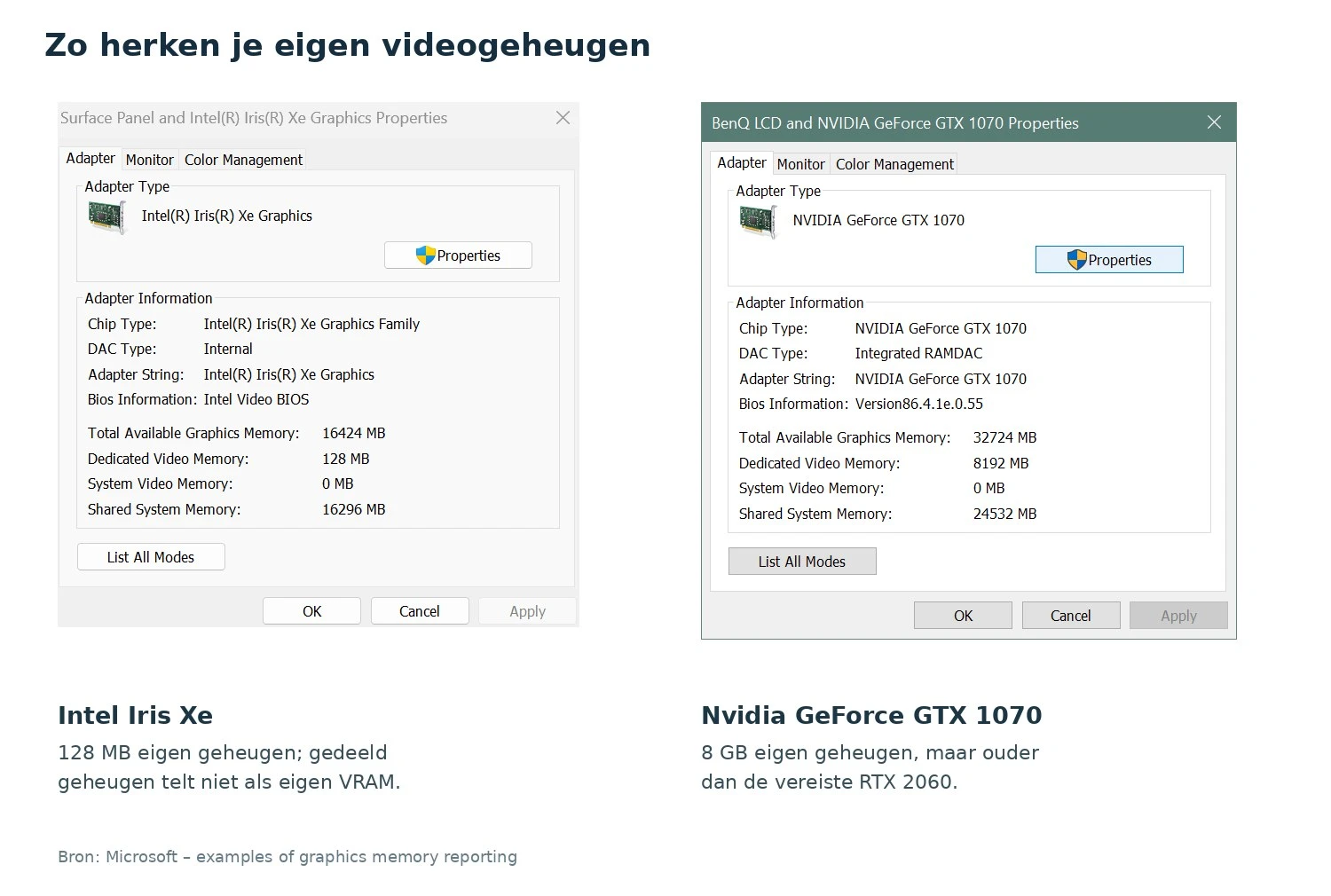
Windows may also show shared or total graphics memory, which can include ordinary RAM. Look for dedicated video memory instead. Microsoft's examples show an Intel Iris Xe adapter with 128 MB dedicated memory, despite a much larger total. A GeForce GTX 1070 has 8 GB dedicated memory but is older than the RTX 2060 specified as the minimum. Checking gigabytes alone is not enough. See Microsoft's graphics memory examples.
3. Compare your results with the table
For example, a laptop with 64-bit Windows 11, a 13th-generation Core i7, 32 GB RAM and an RTX 3060 with 6 GB VRAM meets or exceeds the stated minimum for those components. It falls short of the recommended setup on one point: 8 GB dedicated video memory is recommended. More RAM does not increase the card's dedicated memory.
Bambu lists Ryzen 7 and Ryzen 9 processors. A computer with only an AMD Radeon graphics card is outside the stated Windows requirements. “AMD” alone is not enough information: check whether it refers to the processor or graphics card.
Do you need Wi-Fi 6 to scan with the S1?
For wireless scanning, the computer needs Wi-Fi 6. You can also use the S1 with a cable without Wi-Fi 6. A compatible router alone does not establish that your computer's wireless adapter supports it.
In Windows, open Command Prompt, enter netsh wlan show drivers and press Enter. Under supported radio types, look for 802.11ax, which indicates Wi-Fi 6 or 6E support. With an older adapter, use a cable or add a compatible Wi-Fi 6 adapter. CPU, RAM and graphics requirements apply to both connections. Read Microsoft's Wi-Fi guidance.
Does Bambu Scan work on a MacBook or Mac mini?
As of 27 November 2026, Bambu Scan for Mac has been announced. At launch, the S1 supports suitable Windows computers only. The specification sheet lists Apple M1, macOS 12 and 16 GB memory as future minimum requirements, and Apple M3, macOS 14 and 32 GB memory or better as recommended. Having Bambu Studio installed on a Mac does not mean Bambu Scan is available.
If you use only a Mac and your purchase depends on it, check whether Bambu has released the Mac version before ordering. Read Bambu Lab's platform support announcement.
Is the S1 right for your workspace?
If your computer meets the requirements, Bambu Scan can capture and edit the shape of an existing object. To print it, transfer the processed model from Bambu Scan to Bambu Studio. In the Netherlands, Elektronica Voor Jou listed the S1 at €1,699 including Dutch VAT on 27 November 2026, available to backorder with delivery expected in Q1 2027. Check the applicable local price and availability before ordering.
Not sure about your laptop? Send us the Windows version, full processor name, RAM, graphics card and dedicated video memory. For example: “Windows 11 64-bit, Core i7-13700H, 32 GB RAM, RTX 3060 Laptop GPU, 6 GB VRAM”. Contact Electronics For You for advice.
Manufacturer information: Bambu Lab on the S1 and Bambu Scan.