
GPIO Project 6 - RGB Led
Beginner
30 Minuten
€167.09
In this project you will learn how to use an RGB LED to create different colors by controlling the three primary colors (red, green, blue) separately via GPIO pins. You can combine colors by varying the intensity of each color.
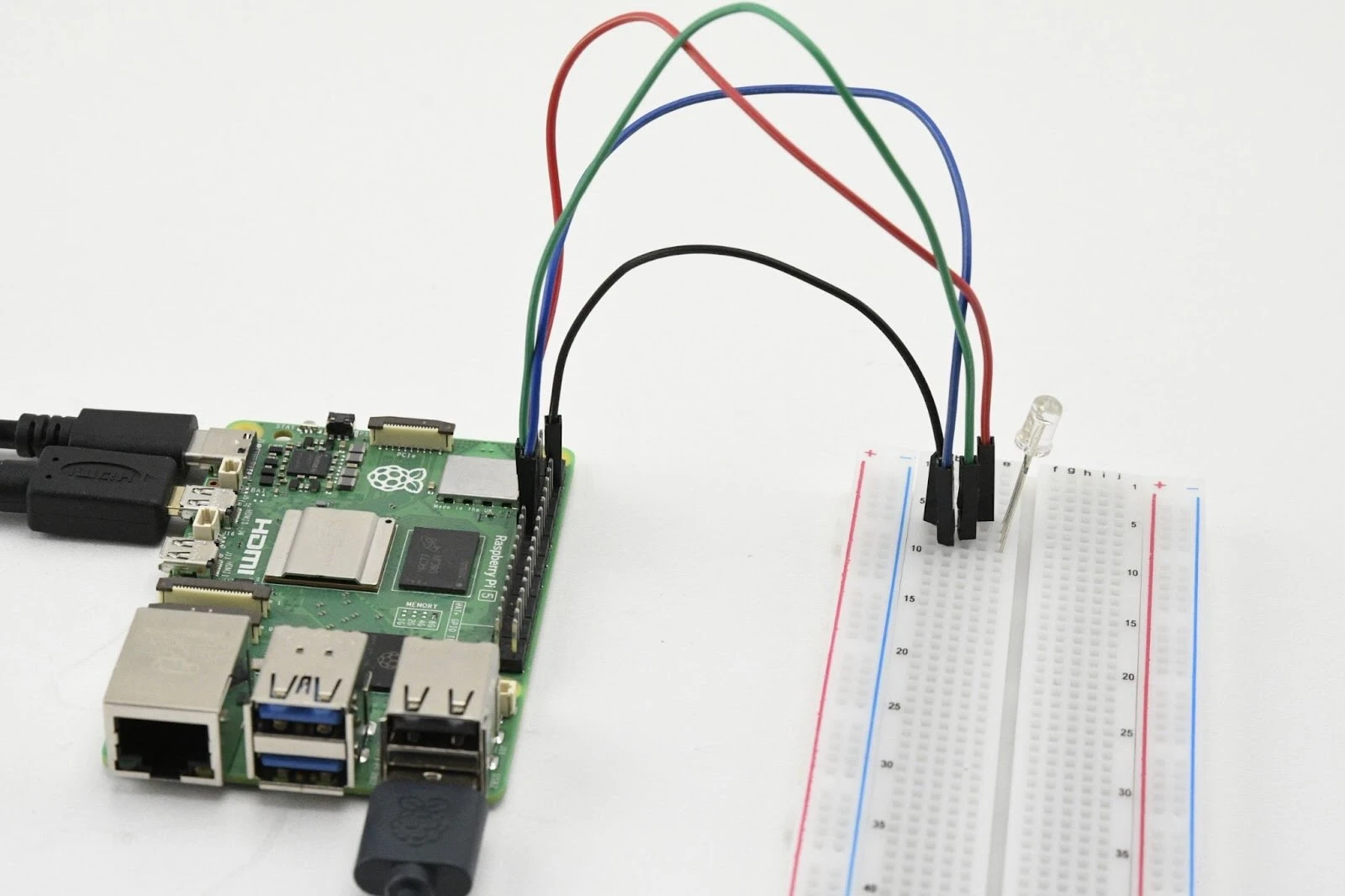
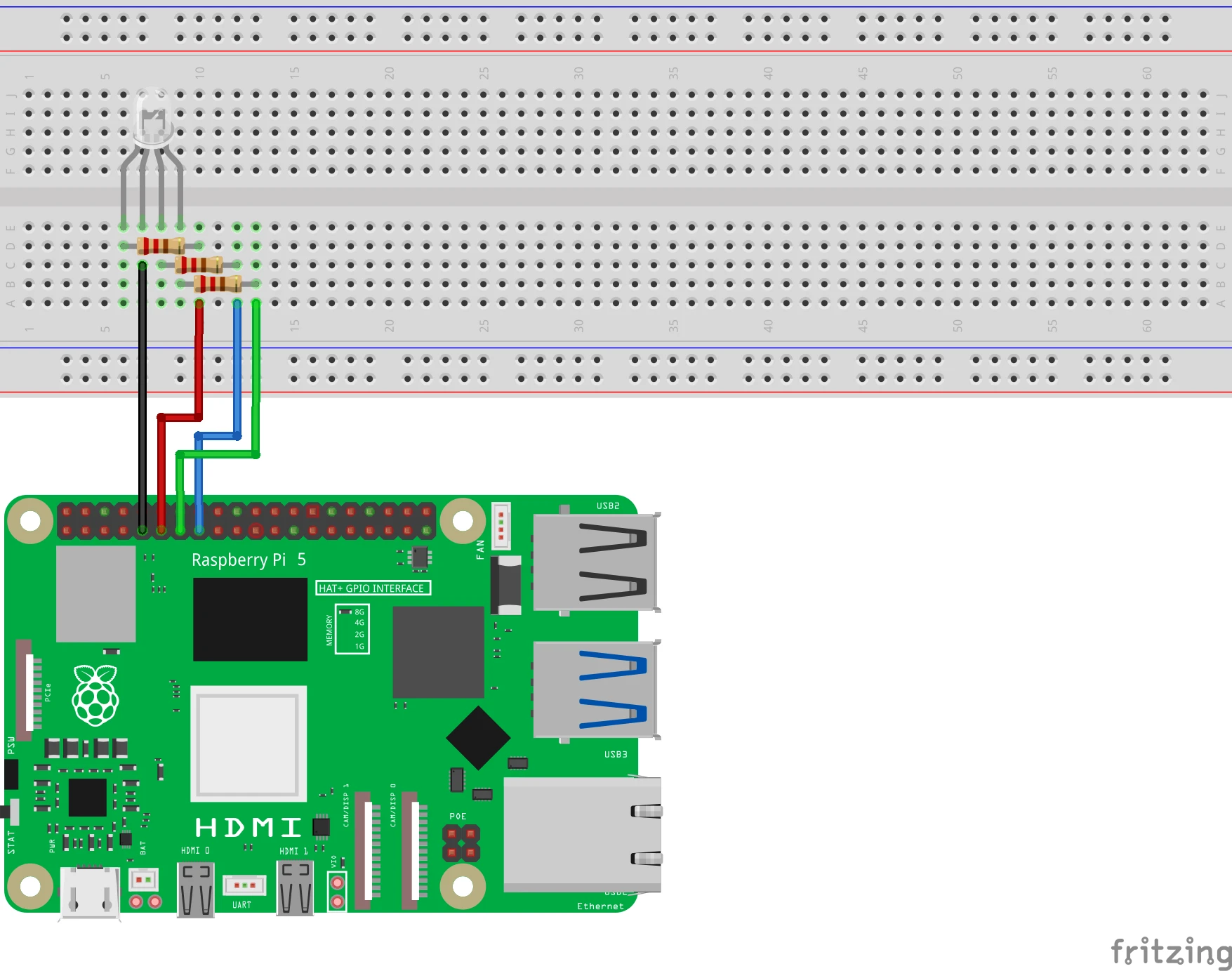
Connection diagram
RGB LED connection (common cathode):
- Connect the common leg (cathode):
- Connect thecommon leg of the RGB LED (longest leg) toGND (pin 6).
- Connect the red LED leg:
- Connect the red leg via a 220Ω resistor to GPIO 17 (pin 11).
- Connect the green LED leg:
- Connect the green leg via a 220Ω resistor with GPIO 27 (pin 13).
Pinout Reference
GPIO | Pin # | Function | Connection |
| GPIO 17 | Pin 11 | Red LED | Connect via resistor |
| GPIO 27 | Pin 13 | Green LED | Connect via resistor |
| GPIO 22 | Pin 15 | Blue LED | Connect via resistor |
| GND | Pin 6 | Earth (Ground) | Common cathode |
Python-code in Thonny
Step 1: Write your code
Open the Thonny Python IDE and enter the following code:
from gpiozero import PWMLED
from time import sleep

# RGB LED-pinnen koppelen aan GPIO
red = PWMLED(17)    # Rode LED op GPIO 17
green = PWMLED(27)  # Groene LED op GPIO 27
blue = PWMLED(22)   # Blauwe LED op GPIO 22

def set_color(r, g, b):
    """Stel de kleur van de RGB LED in."""
    red.value = r    # Rood intensiteit (0.0 - 1.0)
    green.value = g  # Groen intensiteit (0.0 - 1.0)
    blue.value = b   # Blauw intensiteit (0.0 - 1.0)

try:
    while True:
        print("Rood")
        set_color(1, 0, 0)  # Rood
        sleep(1)

        print("Groen")
        set_color(0, 1, 0)  # Groen
        sleep(1)

        print("Blauw")
        set_color(0, 0, 1)  # Blauw
        sleep(1)

        print("Geel")
        set_color(1, 1, 0)  # Geel (rood + groen)
        sleep(1)

        print("Cyaan")
        set_color(0, 1, 1)  # Cyaan (groen + blauw)
        sleep(1)

        print("Magenta")
        set_color(1, 0, 1)  # Magenta (rood + blauw)
        sleep(1)

        print("Wit")
        set_color(1, 1, 1)  # Wit (rood + groen + blauw)
        sleep(1)

        print("Uit")
        set_color(0, 0, 0)  # LED uit
        sleep(1)
except KeyboardInterrupt:
    print("\nProgramma gestopt.")
    set_color(0, 0, 0)  # Zet LED uit bij stoppen
Step 2: Save the file
Click File > Save As and name the file rgb_led.py.
Step 3: Run the script
Click the greenRun button (▶) at the top the Thonny interface.
How does it work?
- PWMLED: This allows you to adjust the intensity of each color with values between 0.0 (off) and 1.0 (fully on).
- set_color(): A function to set the intensity of the red, green and blue LED at the same time.
- Color Combinations: By combining different intensities of red, green and blue, you can create different colors.
Result
- The RGB LED automatically cycles through the following colors: red, green, blue, yellow, cyan, magenta, white, and off.
- Each color remains active for 1 second before switching to the next.
Experimenting
- Adjust Color: Adjust the values of set_color() to create new colors. For example, try:
set_color(0.5, 0.3, 0.7) # Experimentele kleur 2. Interactive Control: Use a push button or potentiometer to manually control the intensity of the colors.
3.Add Blinking: Make the RGB LED blink in specific colors by adjusting sleep().