
Arduino IoT Cloud lesson 2: Potentiometer
This is the second lesson in the Arduino IoT Cloud manual . Haven't followed the first lesson yet? Check it out HERE . During the first lesson, you learned how to turn a light on and off. In this second lesson, you'll learn how to read the value of a potentiometer and how to display it in the IoT Cloud dashboard.
Setup Arduino Create
For this project we will create a new “Thing”. You can also use the “Thing” from the previous lesson, but to keep everything organized we will start over.
If you create a new ”Thing” and use the same board you will be asked to disconnect it. In this project we named the ”Thing” Arduino-IoT-Lesson-2-Potmeter.
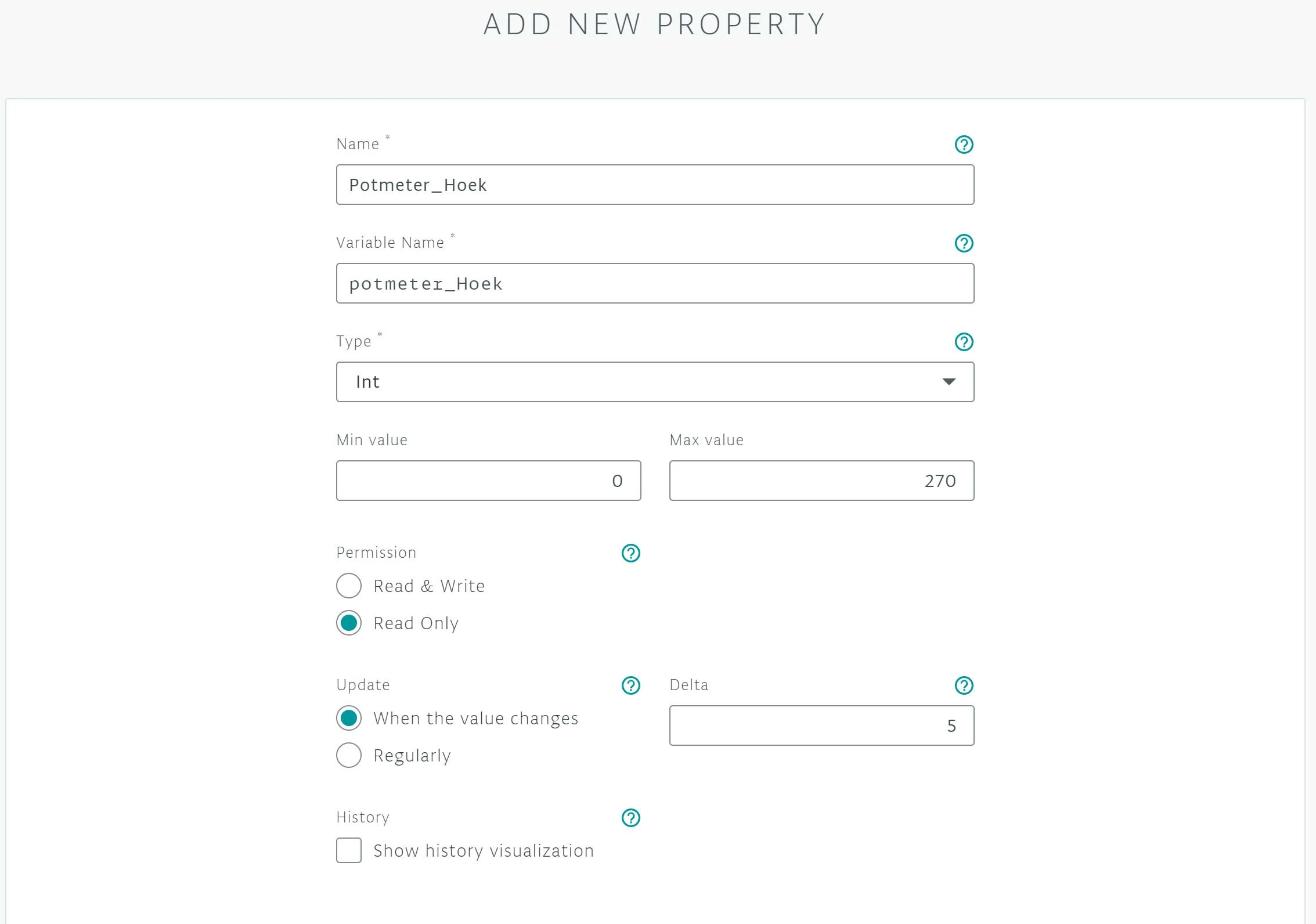
Once you have created your ”Thing” you can add another ”property”. In this project the ”property” is a 10K Potentiometer. We call this ”property” Potentiometer_Angle. In the type we fill in ” int ”. In the ”Min Value” we enter 0. In the ”Max Value” we enter 270.
In this project we select Read only under ”Permission”. We do this because we only need to read the value.
In ”Update” we select ” When the value changes” and in ”delta” we enter 5. We enter 5 because then a new value is only displayed if the difference between the old and new value is greater than 5.
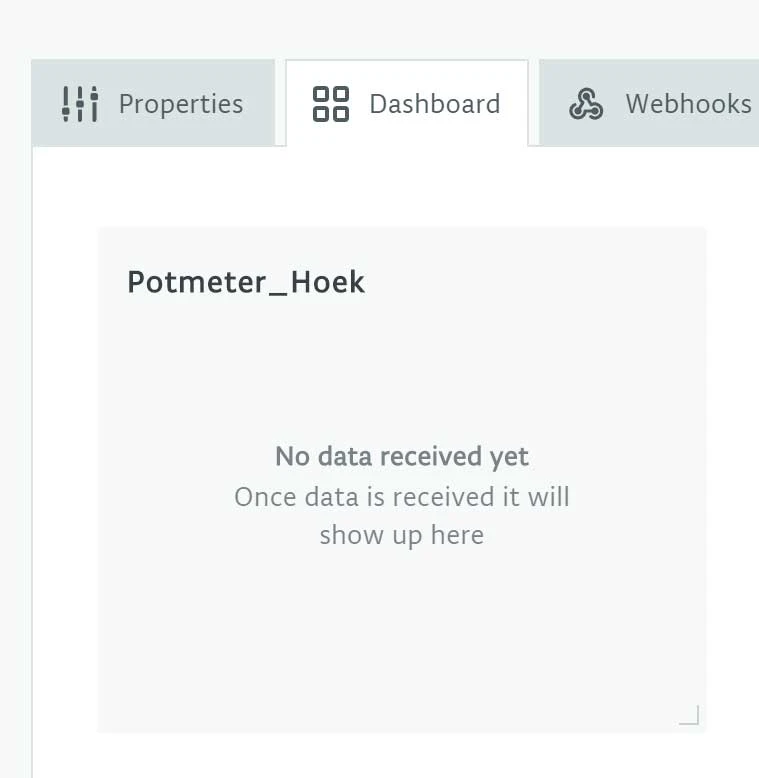
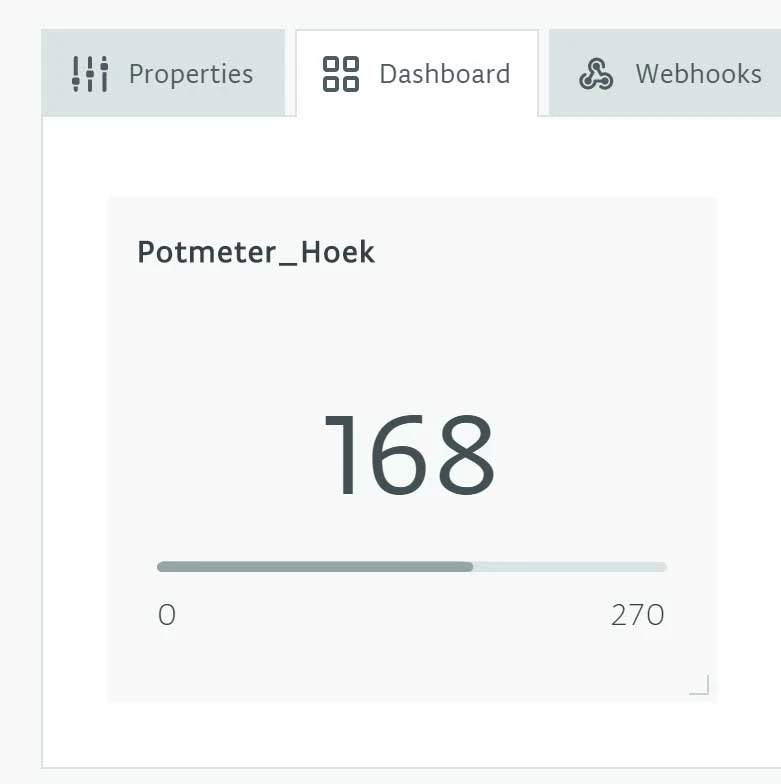
Under the heading "Dashboard" you can find the property you just created. As you can see, there is no data available yet. This is because we have not programmed the Arduino yet. As soon as the Arduino is connected properly, a value will appear here.
Building and Wiring
Now we're going to put the project together.
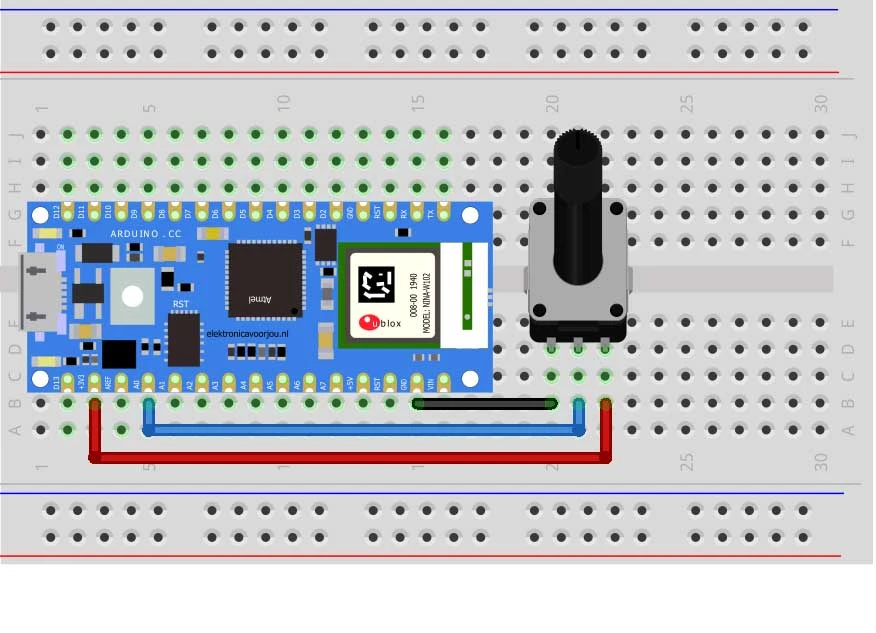
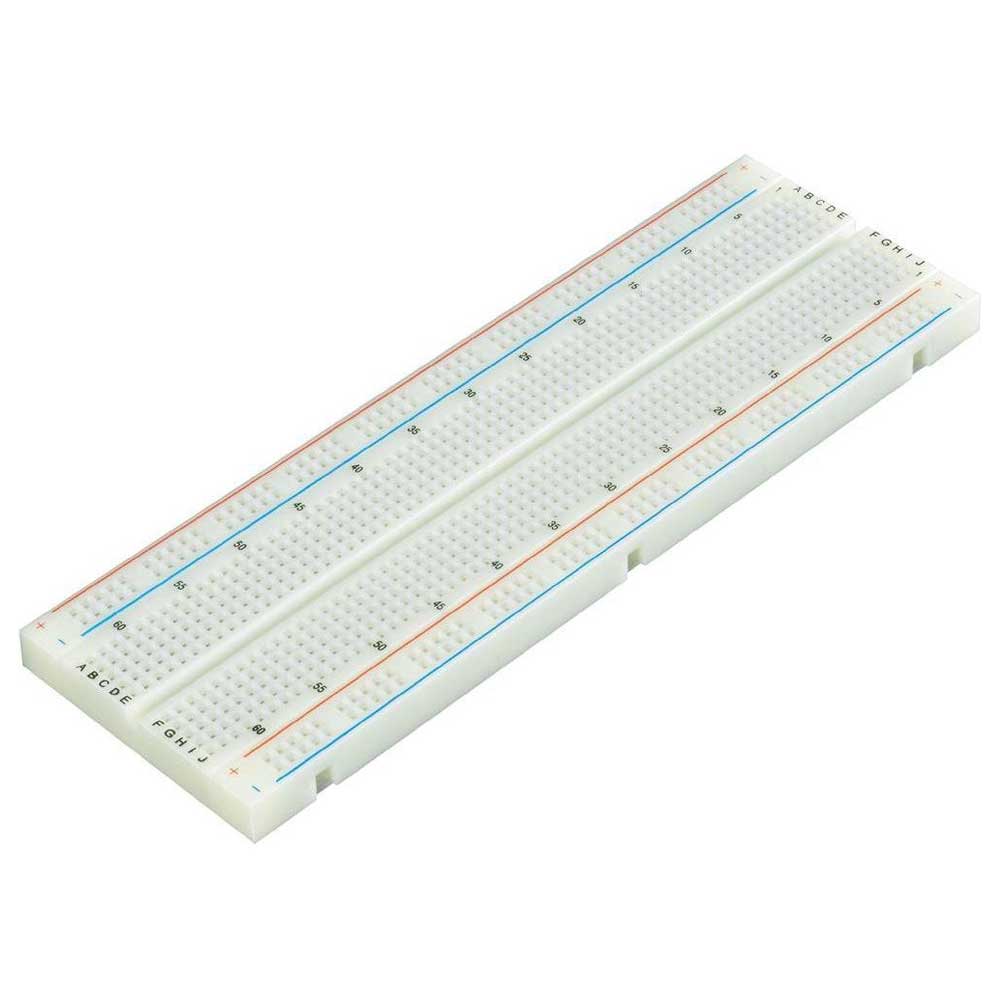
We start by placing the Arduino Nano 33 IoT on the breadboard. In the middle of the breadboard is a slot. Make sure the pins of the board are on both sides of the slot as shown below. Now place the potentiometer and connect the left pin to GND. Connect the middle pin to A0 and the right pin to 3.3V. You have now connected the potentiometer correctly and can start programming.
Programming
Now that you have finished wiring and building your Arduino IoT Potentiometer you can start programming the Arduino Nano 33 IoT. We do this in the same way as in lesson 1.
Below is the code you can use to make the potentiometer work.
#include “thingProperties.h”
#define POTENTIOMETER_PIN A0 //Hier definiëren we pin A0 als POTENTIOMETER_PIN

void setup() {
Serial.begin(9600);
delay(1500);

initProperties();

ArduinoCloud.begin(ArduinoIoTPreferredConnection);

setDebugMessageLevel(2);
ArduinoCloud.printDebugInfo();
}

void loop() {
ArduinoCloud.update();
int HoekSensor = analogRead(POTENTIOMETER_PIN); //Hier zorgen we dat de potentiometer wordt uitgelezen
potmeter_Hoek = map(HoekSensor, 0, 1023, 0, 270); //Hier geven we aan wat de waardes zijn van de potmeter

}
Required products
 1×
1×Arduino Nano 33 IOT - With Headers
 1×
1×Breadboard 830 tie points
 1×
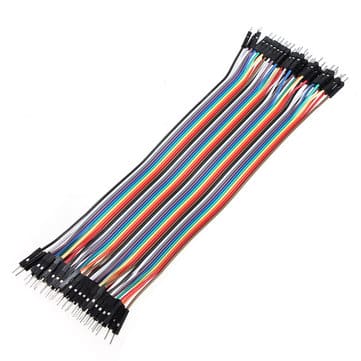
1×Premium Jumper Wires 40 pieces 20cm M/M
 1×
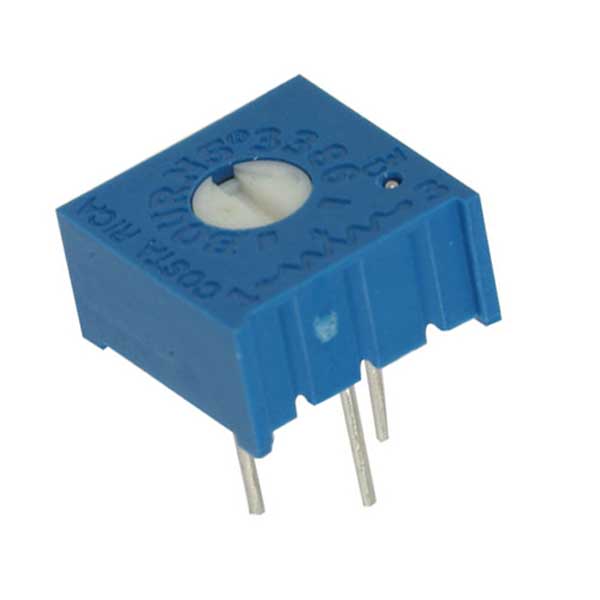
1×10K Ohm potentiometer - 3386P
- 1×